All guides
Setting up on iPhone and iPad
Installing RabbitHole on iPhone and iPad: the app, the subscription and connecting.
Who it’s for: iPhone and iPad owners on iOS 17 or newer
Moving from Clash Mi to RabbitHole
Clash Mi is no longer supported: add the same link to RabbitHole — your plan and remaining days stay. Then delete Clash Mi and free the slot: “Устройства” (Devices) → “Удалить” (Delete) in your account. If you stay on Clash Mi for now, update it in the App Store to version 1.0.29 or later: older versions drop the connection more often.
Open the setup wizard
In your account press “Установить и настроить” on the subscription card, then “Начать настройку” (Start setup).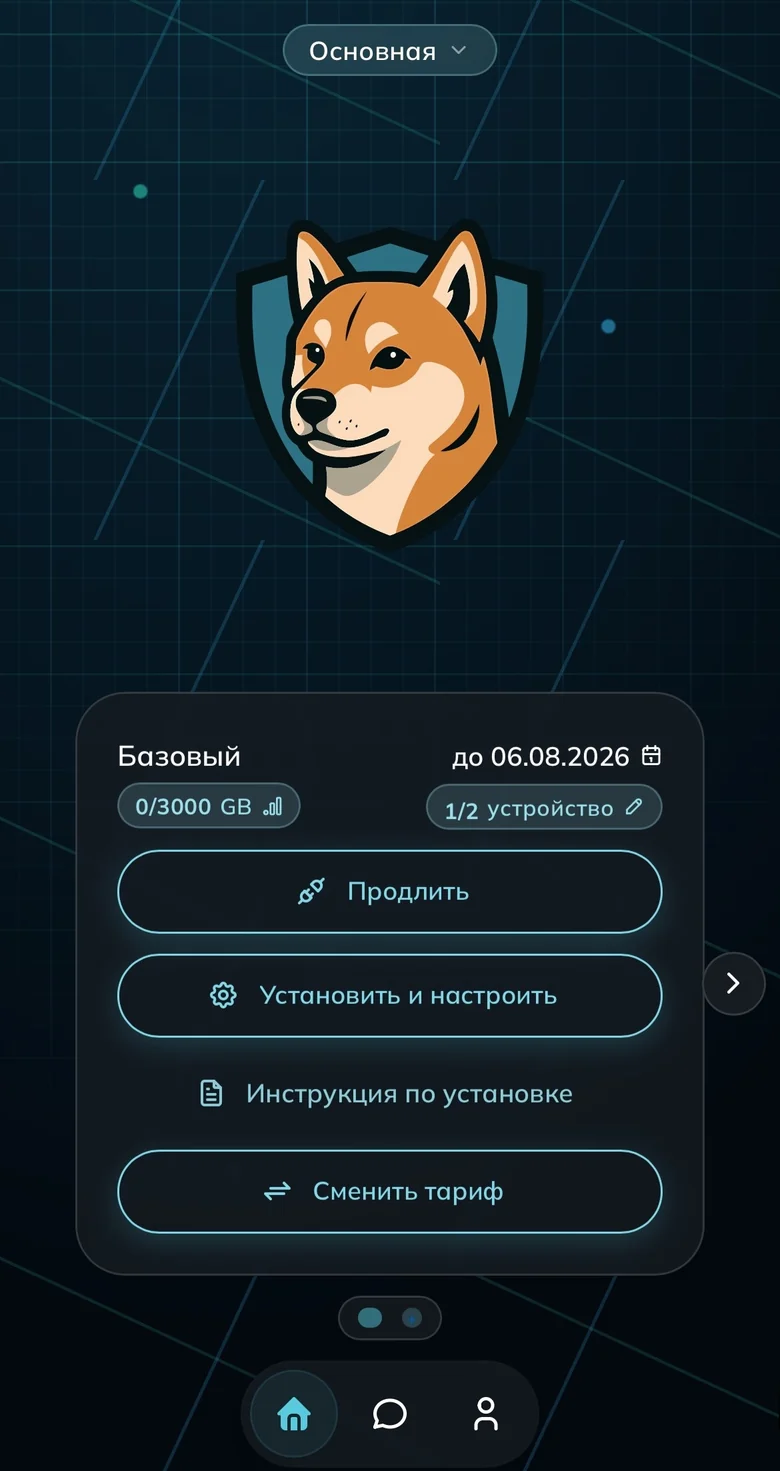
The “Установить и настроить” button on the subscription card Install the app
Press “App Store” and install RabbitHole.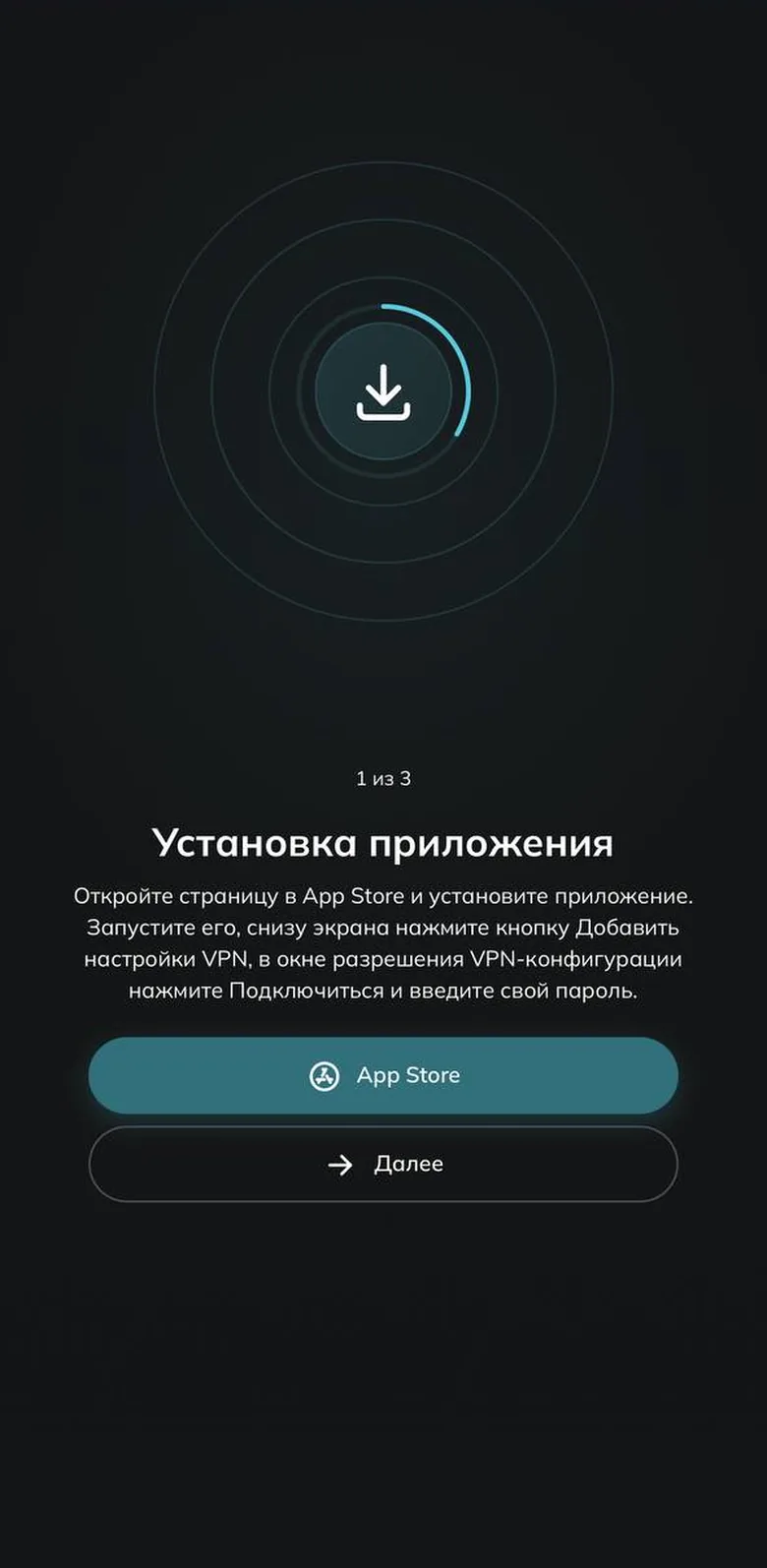
Step 1: the app Add the subscription
Go back to the wizard and press “Добавить подписку” (Add subscription) — the app opens and the subscription is added on its own.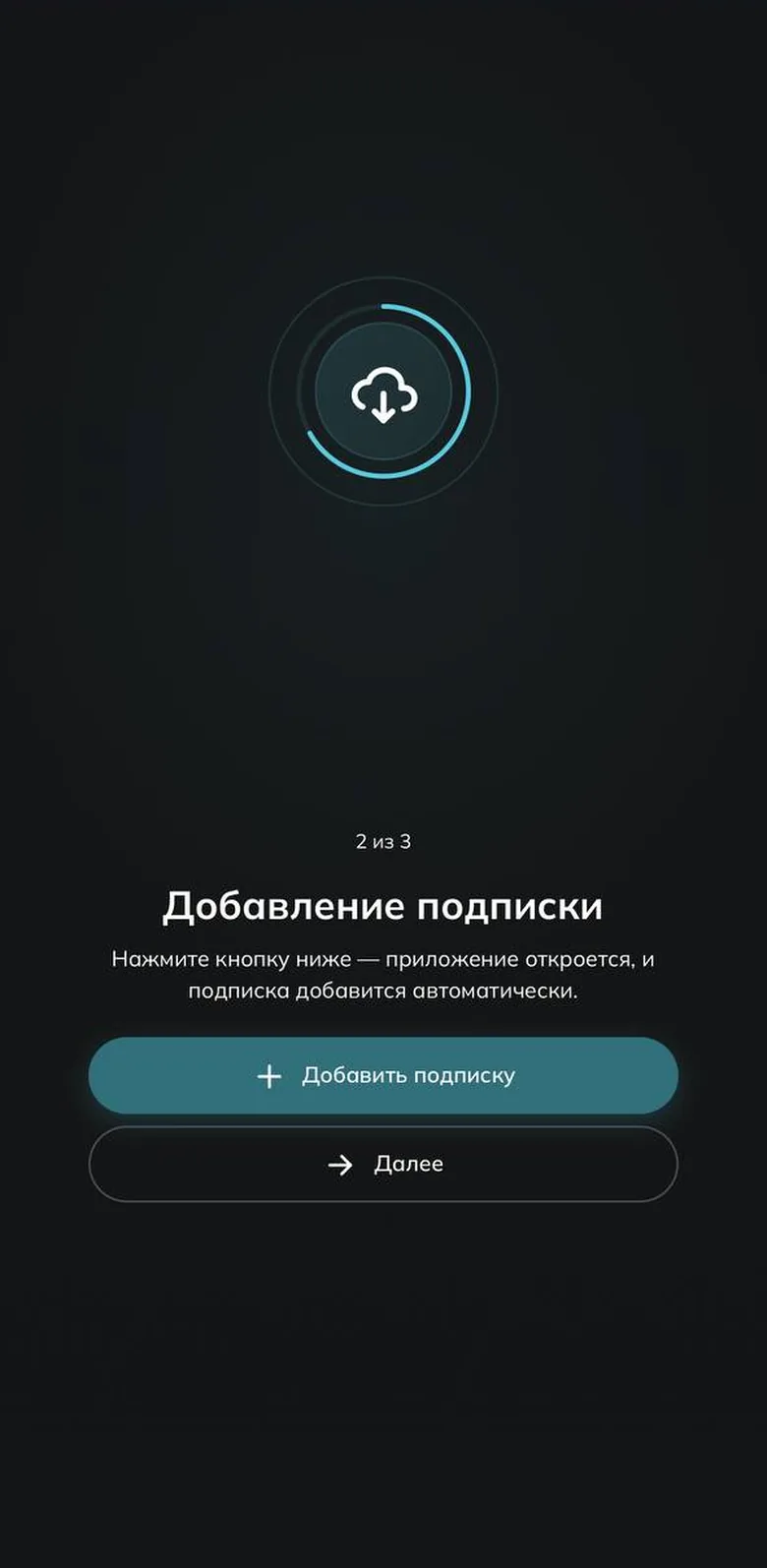
Step 2: the subscription Connect
Tap “Добавить настройки VPN” (Add VPN settings) at the bottom, then “Подключиться” (Connect) in the permission prompt, and enter your device passcode. That is one-off. After that the bottom button connects and disconnects: “Подключено” (Connected) appears at the top with a timer.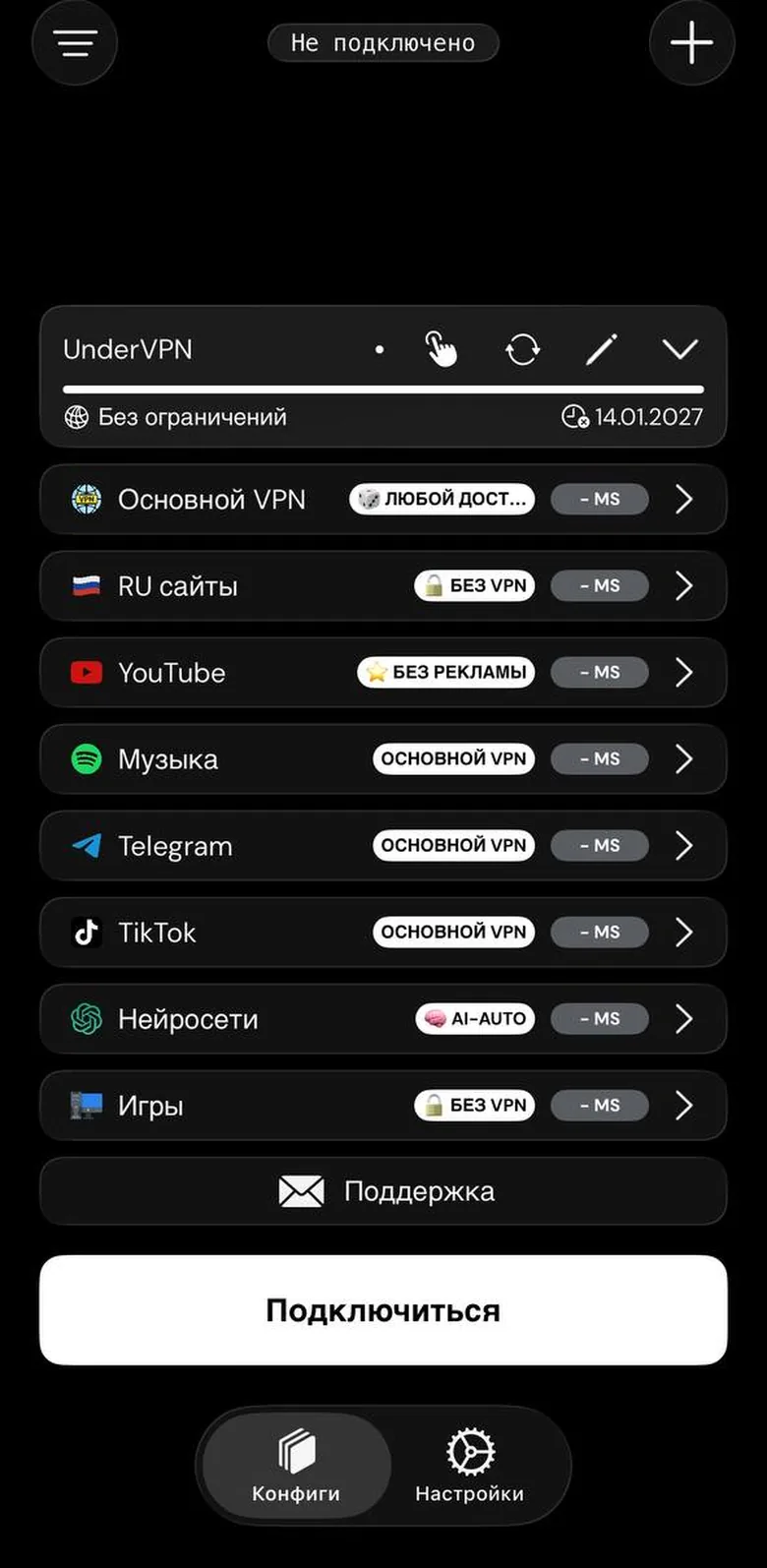
Before connecting 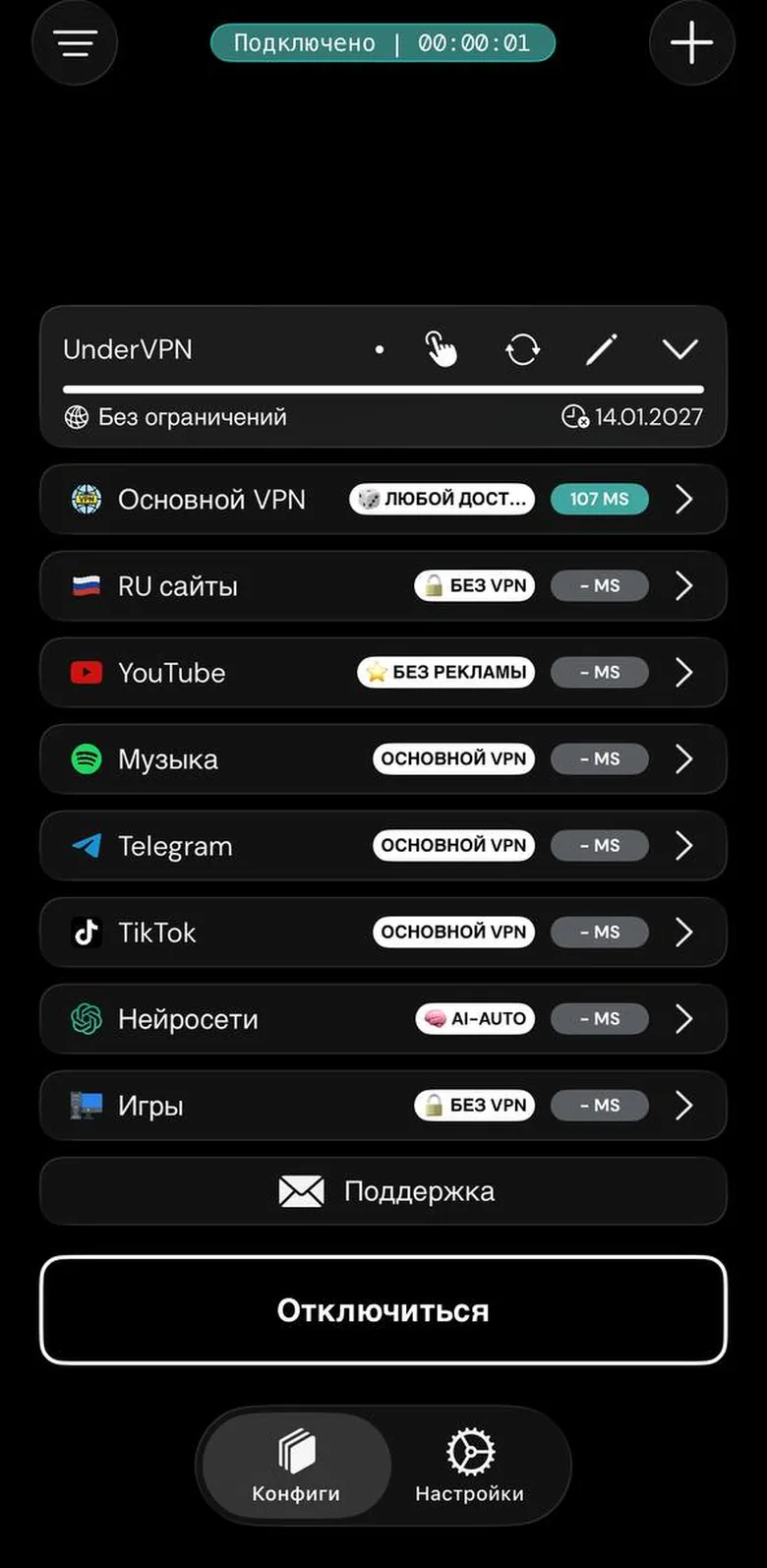
After connecting
Done
Common questions
Do I need a foreign Apple ID?
No. RabbitHole and the fallback INCY are both in the Russian App Store.
The subscription was not added automatically
In the wizard open “Другое устройство” → “Скопировать ссылку”, then in the app press “+” at the top right and add it from the clipboard.
The connection is on but sites will not load
Press the refresh icon on the subscription card and reconnect. Check that no other VPN app is running. If that fails, delete the subscription and add it again.
Ready to join?
5
dayson us
Sign up and try UnderVPN on every device — no payment upfront.
- No card to start
30-second signup