Installing on Linux
How to get the right build from the wizard, install it, add your subscription and connect.
Who it’s for: For UnderVPN subscribers running Linux on a desktop or laptop.
AppImage
The connection may fail to start from an AppImage — install the .deb or .rpm package instead; if there is no package for your distribution, write to support.
Refresh the subscription first
Servers gone or the connection failing: in FlClashX open Профили (Profiles) → three dots on the subscription card → Обновление (Update), then switch the connection off and on. The app itself updates only through a new file.
Download the app
Open the Установить и настроить (Install and set up) wizard in your account and download FlClashX. No build for your system — take Happ, INCY, Koala Clash.
Downloading from /en/download/ yourself? Two commands tell you what to take:
uname -mx86_64means x64,aarch64means ARM64.cat /etc/os-releasedebian or ubuntu — take the .deb, fedora, rhel or suse — the .rpm, anything else — the AppImage.
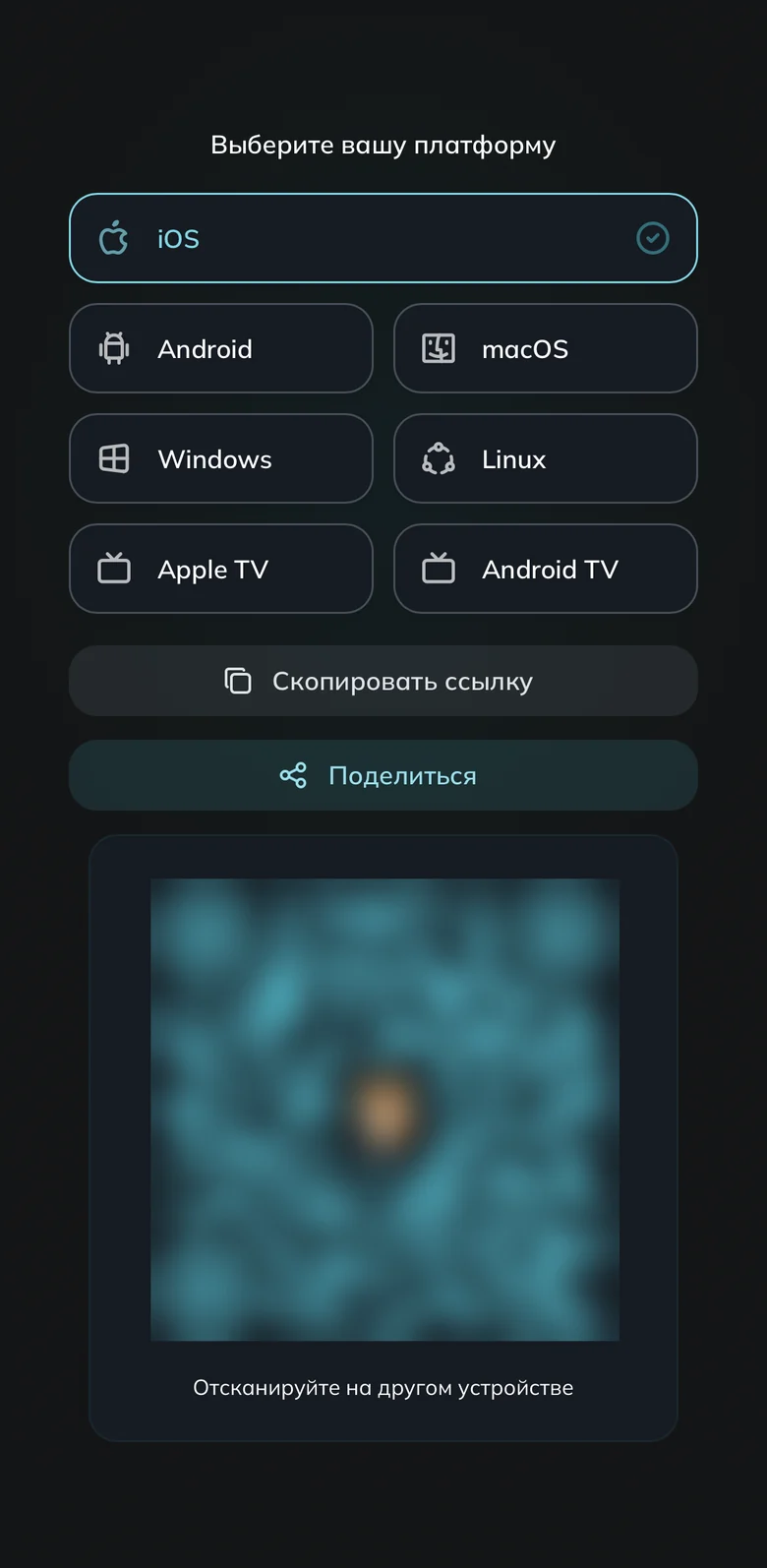
Pick the Linux tile in the wizard Install the .deb or .rpm package
Go to the folder with the downloaded file (on a Russian-language system it is
~/Загрузки):cd ~/DownloadsDebian, Ubuntu, Mint:
sudo apt install ./flclashx-linux-x64.debFedora, Rocky, AlmaLinux:
sudo dnf install ./flclashx-linux-x64.rpmopenSUSE:
sudo zypper install ./flclashx-linux-x64.rpmThe
./before the filename is required — without it the package is looked up in the repository, not on disk.If you have the AppImage
Put the file somewhere permanent and make it executable:
chmod +x flclashx-linux-x64.AppImageIf a double click does nothing, run it from a terminal:
./flclashx-linux-x64.AppImageOn a FUSE message:
sudo apt install libfuse2On Ubuntu 24.04 and Debian 13 the package is called
libfuse2t64.Add your subscription
In the wizard press Добавить подписку (Add subscription). If not: Другое устройство → Скопировать ссылку, then Добавить из буфера обмена in the app.
Each app takes a device slot; clear old ones in Устройства (Devices). How to connect a second device.
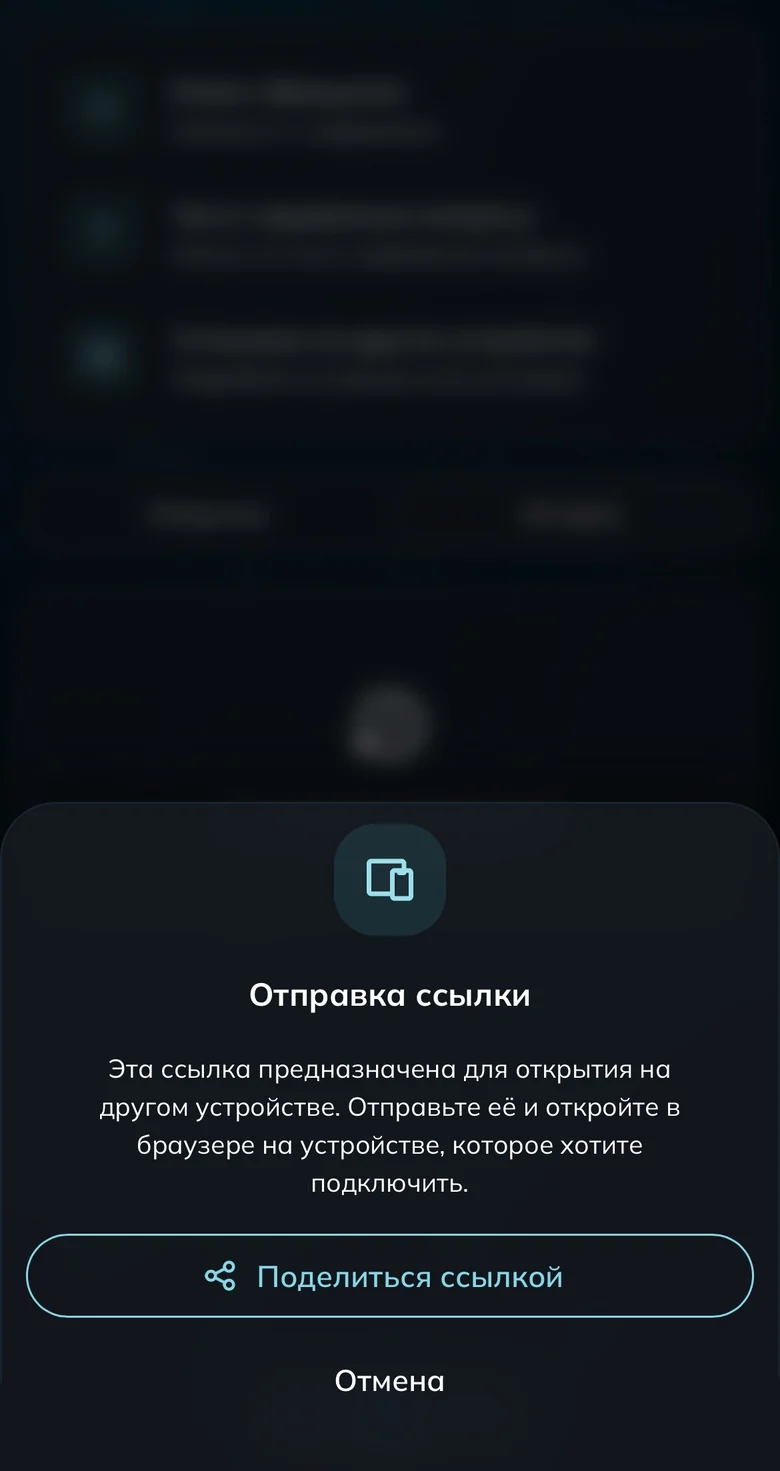
The «Поделиться ссылкой» button sends the link to the computer Turn the connection on
Launch the app and connect. On the first connection the app asks for the administrator password. Quitting the app drops the connection.
Done
Common questions
The app is installed but there are no servers in it
The app is running but there is no tray icon
Sign up and try UnderVPN on every device — no payment upfront.
- No card to start
30-second signup