Installing on a TV
How to install the app on Android TV, Google TV or Apple TV and send your subscription link.
Who it’s for: You have Android TV, Google TV or Apple TV and a subscription
Not every TV qualifies
Samsung sets on Tizen and LG sets on webOS take neither Happ nor vpn4tv. Option — a VPN on the router: see the Keenetic guide (/instructions/keenetic/, in Russian).
The app is not on the home screen
After installation Happ may not appear on the home screen — open the full app list in the TV settings and launch it from there.
Get the subscription link on another device
On a phone or computer open the «Установить и настроить» → «Другое устройство» wizard in your account. Press «Скопировать ссылку» or open the QR code; do not share it with anyone. How to connect a second device.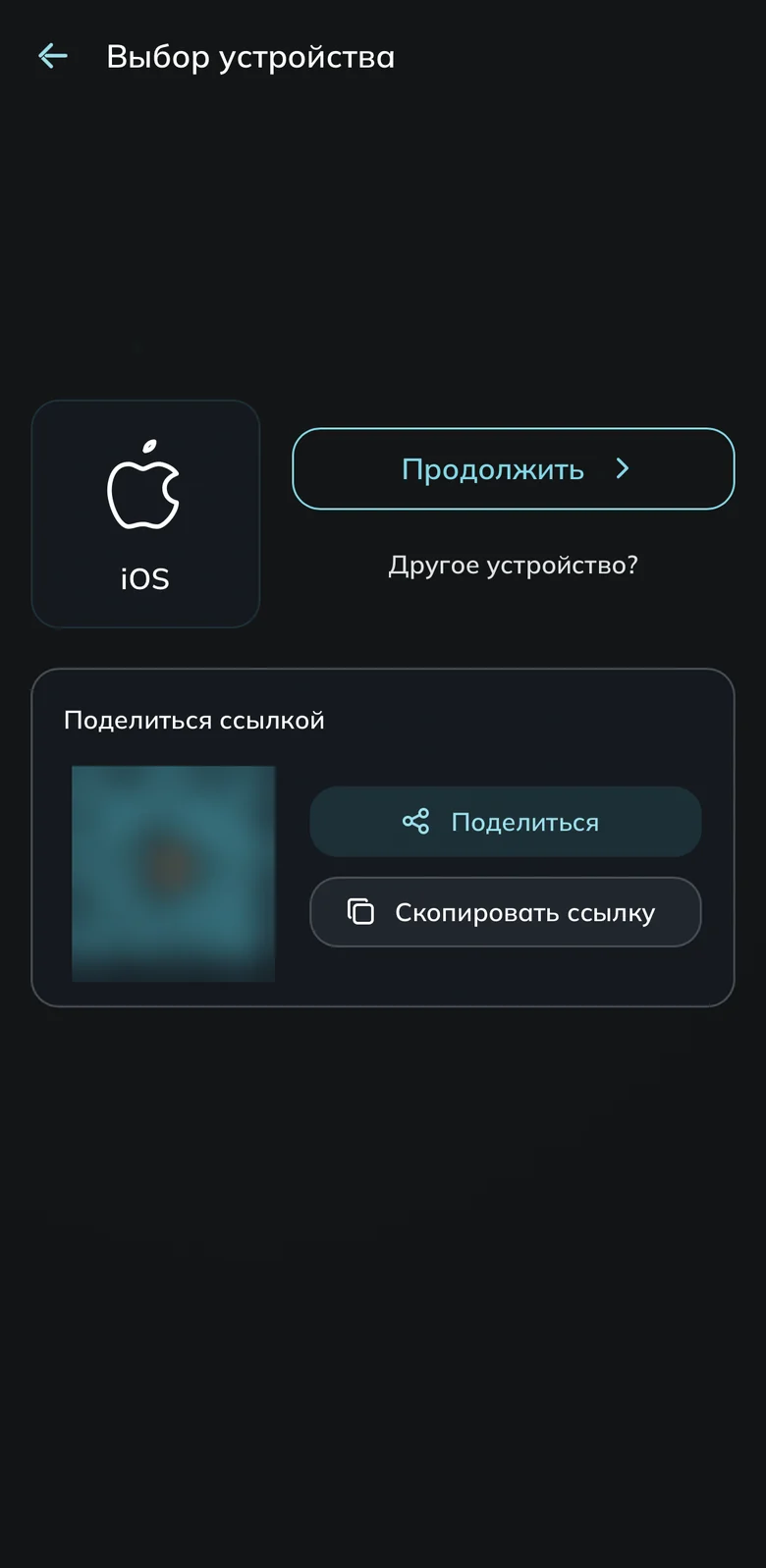
The «Продолжить» button and «Другое устройство?» link 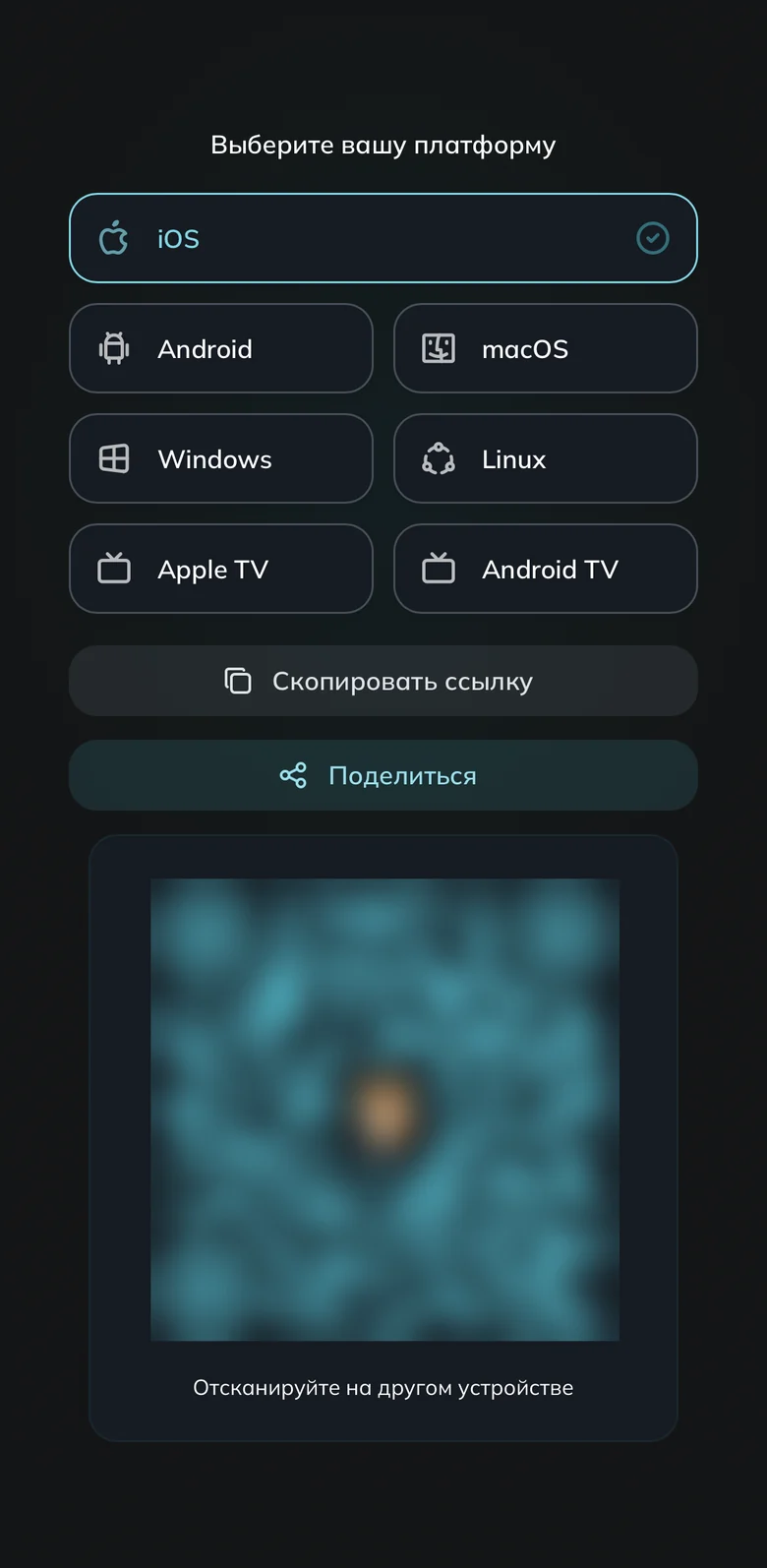
Pick the Apple TV or Android TV tile Install the app on the TV
Android/Google TV: install Happ from Google Play, or the APK from /en/download/ with a downloader app or a phone, and allow installation. Fallback — vpn4tv.
Apple TV: install Happ - Proxy Utility for TV (tvOS 17.6) from App Store. Link fails — search for it on the TV.
Send the subscription from your phone, if Happ is on it
On the import screen scan the QR code with the phone, choose the subscription and confirm. Both devices need the same Wi-Fi; keep the import screen open until it finishes. On iPhone allow local network access — already declined, reinstall Happ or use Web Import.Send the link via Web Import
On the TV import screen choose Web Import — a temporary code appears. On another device open tv.happ.su, enter the code in UID (device identifier), paste the link into Data and press Send data. If the code stops working, read a new one on the TV.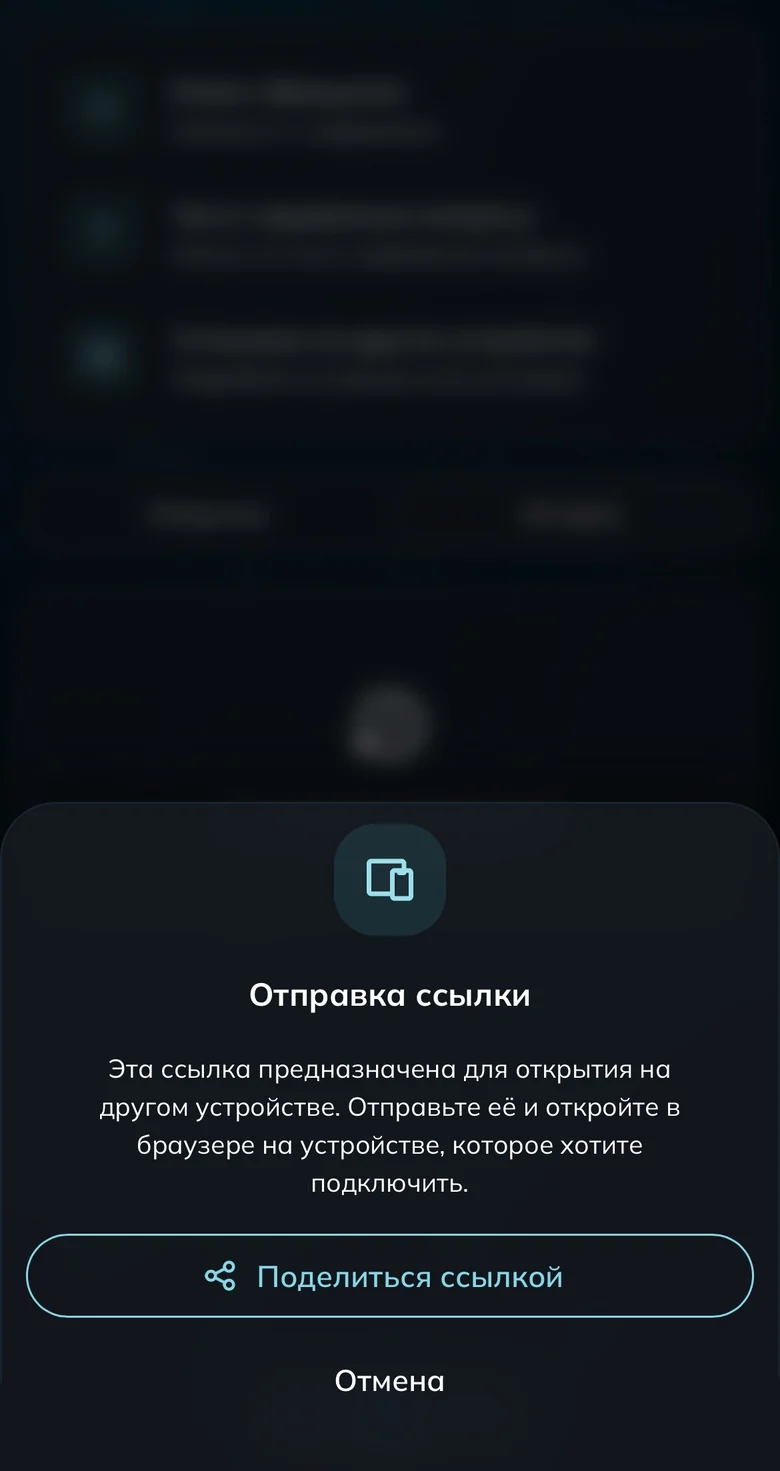
The «Поделиться ссылкой» button in the sharing dialog Allow the VPN and connect
On Android TV pick a server and connect. Confirm the one-time VPN permission with the remote. List empty — pull it down or press refresh on the subscription card, then reconnect. No connection after switching the TV on — open the app and connect again.
Done
Common questions
The TV keeps losing the subscription and I import it again
Does the TV count as a separate device?
What about a set-top box, VR headset or a tablet with no app store?
Sign up and try UnderVPN on every device — no payment upfront.
- No card to start
30-second signup